USE OF DEXCOM’S INVESTIGATIONAL-USE DASHBOARD FOR SECONDARY DISPLAY OF DEXCOM CGM DATA AS ADDITIONAL TOOL FOR REMOTE PATIENT MONITORING
As there are no approved or available alternatives that could provide continuous remote glucose monitoring in the hospital setting, Dexcom is responding to numerous requests
from hospitals for the use of our real-time continuous glucose monitoring devices, such as the Dexcom G6 CGM System (“Dexcom G6”), to remotely monitor patients.
It is hoped that the use of the Dexcom G6 in this context will help reduce Personal Protective Equipment (“PPE”) usage and hopefully reduce
hospital staff exposure to COVID-19 during the current COVID-19 pandemic. For more information, please see https://www.dexcom.com/hospitalfacts.
Dexcom’s investigational-use dashboard provides a secondary display of the data generated from the Dexcom G6 that may be used by hospitals as an additional tool used in the context of IRB-approved study to further support remote-patient monitoring in the hospital setting.
FAQS
1 - Can I make treatment decisions (e.g., dosing) based on the data in the Dashboard?
No. The investigational-use dashboard is an additional tool that has been made available by Dexcom for the secondary display
of CGM data to assist healthcare professions in remotely monitoring their patients’ glucose data in the context of an IRB-approved
clinical trial.
All treatment decisions should be based on standard point of care (POC) glucose test for treatment decision. Healthcare professionals
(HCPs) should use existing hospital protocols which may include standard point of care (POC) or serum laboratory glucose tests to manage
and treat patient glucose level. Real-time CGM systems can
be used to provide remote monitoring and glucose trends to aid in glucose management and medical decision making.
To see information for the use of Dexcom CGM systems for remote patient monitoring in COVID-19 related efforts,
please see https://www.dexcom.com/hospitalfacts.
2 - Dashboard Layout
What is the difference between the three sections?
Priority: Patients that currently have an Urgent Low Alert, Low Alert, a High Alert, or Check Sensor Alert.
Active: Patients who have no current Alerts.
Inactive: Patients no longer in a sensor session. Before discharging a patient from the dashboard, manually move them to this section.
How are patients sorted in the Priority section?
Patients are sorted by Urgent Low, Low, High, then Check Sensor.
How are patients sorted in the Active section?
The patient in the leftmost or topmost position is the one with the longest Time Out of Range.
What is the Active section’s default sort?
By default, patients are sorted by Time Out of Range. Use the dropdown to change the sort order. If you close the dashboard, it reopens to the default sort
What does “X minutes ago” mean?
This is the time since the last EGV was logged by the Dexcom G6 transmitter.
3 - Using the Dashboard
How do I add a patient to the Dashboard?
- Click “Add Patient” in the top right of the Dashboard
- Enter the patient’s information and click “Submit”
- When prompted, either create a new Dexcom account or enter the username and password for a pre-created account
- Accept the data sharing agreement
- The patient is added - verify that the participant has been added on the reports page
How do I remove a patient from the Dashboard?
- Drag the patient’s name into the Inactive section of the Dashboard
- Click the Blue X in the upper right-hand corner of their card, or the far left if in list view
- A confirmation menu will pop up. Click DISCHARGE PATIENT.
Can I export patient data?
Yes. Click Export and follow on-screen instructions
When/Why does the dashboard audibly alert?
The dashboard audibly alerts you when a patient is Urgent Low, Low, High, or if there is a Check Sensor error. The dashboard re-alerts every 3 minutes until you click the patient’s checkbox.
- Urgent Low: EGV below 60mg/dL.
- Low: EGV below the threshold set by your administrator.
- High: EGV above the threshold set by your administrator.
- Check Sensor: After the patient has been in the “Check Sensor” state for 60 minutes.
How do I confirm alerts?
Click the checkbox by the patient’s name. If the patient’s glucose doesn’t come back within their target range, they get re-alerted.
- Urgent Low: Re-alerts after 45 minutes.
- Low: Re-alerts after 60 minutes.
- High: Re-alerts after 120 minutes
- Check Sensor: Re-alert after 60 minutes
What is the password policy?
- Must be between 8 and 40 characters
- May not contain your account name
- Must contain some combination of at least three of the following:
- Uppercase letter
- Lowercase letter
- Number
- Punctuation or symbol (`~!@#$%^&*()_-={}|[]:;'<>?,)
4 - Troubleshooting
Why doesn’t my patient have an “Est. Sensor Remaining?”
Estimated sensor expirations is an estimate for the time until the first sensor session expires. It is only valid for the first sensor session. If the patient has more than one sensor session, the Est. Sensor Remaining will always show “Expired”.
How do I troubleshoot the “Check Sensor” error?
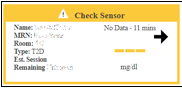
- Press ctrl+F5 on your keyboard or the refresh icon on your browser
- Is this error being displayed by one patient, or all?
- If displayed by one patient, go to # 3
- If displayed by all patients, go to # 4
- Check the primary display in the patient’s room: Does it display an EGV number?
- YES, an EGV is present on the phone
- Check phone is connected to the Wi-Fi
- Verify that sharing is enabled on the phone
- NO, the phone is also displaying an error
- Signal Loss Error
- Turn Bluetooth off and on. Wait 10 minutes
- Sensor Failed Alert
- Follow on-screen instructions
- Sensor Error or No Readings Alert
- Make sure the sensor is secure and the transmitter is snapped flat in its holder
- Ensure that the participant is not laying directly on the transmitter
- Check that the device you are using to view the Dashboard is connected to the internet
- Access the Dashboard using a second computer or tablet
- If you are connected to the internet and using a second device does not work, please call the Tech Support number in the top right of your screen.
I have questions about the Dexcom Investigational-Use Dashboard or the Dexcom G6 CGM systems or support tools, how can I reach Dexcom?
Please contact covid-19medicalscience@dexcom.com
Additional considerations for use of Dexcom G6 CGM Systems in the Hospital Settings during the COVID-19 Pandemic
Dexcom Continuous Glucose Monitoring (CGM) Systems are indicated for home use and have not been FDA-cleared or approved for use in
hospital settings. FDA notified Dexcom on April 1, 2020, however, that it will not object to Dexcom’s provision of CGM systems for
the treatment of patients in hospital settings and other healthcare facilities to support COVID-19 healthcare-related efforts during
the current pandemic.
For more information, please see https://www.dexcom.com/hospitalfacts.
- CGM glucose results are less accurate than blood glucose results obtained using traditional testing methods (e.g., lab glucose, blood glucose meters). Users should consider all CGM glucose information (e.g., trend) along with individual glucose values, and interpret CGM results in the context of the full clinical picture.
- CGMs may be subject to interferences that may generate falsely high and falsely low glucose readings. Levels of interference depend on drug concentration; substances that may not significantly interfere in non-hospitalized patients may interfere when used in the hospital setting because of higher dose levels. Most drugs used in hospital or critical care settings have not been evaluated and their interference with CGMs is unknown. Based on its structure, it is unlikely hydroxychloroquine would interfere with Dexcom CGM. Known interferences vary by CGM brand, and can include:
- Acetaminophen
- Ascorbic acid
- Hydroxyurea
- Other reducing drugs/ compounds
- Poor peripheral blood perfusion may cause inaccurate sensor readings. CGM results should be interpreted considering accompanying patient conditions and medications. Other clinical conditions may also cause inaccurate readings.